Your shopping cart is empty!
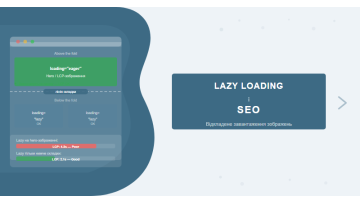
Lazy loading only harms SEO in one situation: when the loading="lazy" attribute is applied to the LCP image. The rule is simple — load the hero banner and above-the-fold content eagerly, and defer everything below. This article explains how to configure it correctly and verify the results.
Contents
- What is lazy loading and how it works
- Impact on Core Web Vitals: LCP and CLS
- How Googlebot sees lazy-loaded images
- Native lazy loading vs JavaScript libraries
- Configuration rules: eager vs lazy
- Lazy loading for video and iframes
- Common implementation mistakes
- Case study: how lazy loading destroyed a client's LCP
- How to verify: Lighthouse, PSI, DevTools
- Frequently asked questions
What is lazy loading and how it works
Lazy loading is a technique where images, videos, and iframes are not loaded when the page first opens, but only when the user scrolls them into the visible area. The browser saves bandwidth and reduces initial load time by not requesting resources that may never appear on screen.
There are two implementation approaches:
- The native
loading="lazy"attribute — built into HTML5, supported by Chrome 77+, Firefox 75+, Safari 15.4+ (over 96% of sessions as of 2025). - Intersection Observer API — a JavaScript interface that tracks when an element intersects with the viewport. This underpins libraries like lazysizes, lozad.js, and vanilla-lazyload.
The mechanics of native loading="lazy" are straightforward: the browser sets an internal distance threshold from the viewport (typically 1250 px for slow connections, 200–500 px for fast ones) and begins loading the image only when it comes within that threshold during scrolling.
Before native loading="lazy" became standardized, developers had to implement JavaScript-based solutions or rely on third-party libraries — each with its own set of bugs, maintenance overhead, and SEO risks. The native attribute changed the game: a single HTML attribute, zero JavaScript overhead, and consistent browser-level behavior across all modern platforms.
Impact on Core Web Vitals: LCP and CLS
Lazy loading directly affects two Core Web Vitals metrics — LCP (Largest Contentful Paint) and CLS (Cumulative Layout Shift). The impact can be either positive or severely negative, depending on whether the attributes are applied correctly.
LCP: where it most often breaks
LCP measures how quickly the largest visible element on the first screen renders. This is usually the hero banner, the first image in an article, or a video thumbnail. If loading="lazy" is applied to this element, the browser delays its loading — causing LCP to increase by 2–3x. Google's target is LCP under 2.5 seconds. This is one of the most common errors we encounter during technical audits.
For more on LCP, INP and CLS metrics and their effect on rankings, see our article on Core Web Vitals.
CLS: images without dimensions
CLS records how much the page content shifts during loading. When an <img> tag lacks width and height attributes, the browser can't reserve space in the layout, and content jumps when the image loads. Lazy loading doesn't cause this on its own, but it amplifies the consequences — since elements load asynchronously and unpredictably.
CLS rule: every
<img> — lazy or not — must have width="800" height="450" (or actual dimensions). CSS aspect-ratio also solves the problem: img { aspect-ratio: 16/9; width: 100%; }.
The good news is that fixing both issues usually requires minimal changes to the HTML template. In most CMS platforms, it's enough to locate the image output tag in the template and add two attributes. WordPress, for instance, handles this through wp_get_attachment_image, which automatically injects width and height from the media file's metadata — assuming the images were uploaded at correct dimensions.
How Googlebot sees lazy-loaded images
Googlebot uses the Web Rendering Service (WRS) built on Chromium. This means it executes JavaScript and, in theory, sees images with lazy loading — including those loaded via Intersection Observer.
How Googlebot renders JavaScript content and what limitations exist — more in our article on JavaScript SEO.
However, there are important nuances:
- Rendering doesn't happen in real time. Google collects HTML and JavaScript separately. Between the first crawl and rendering, hours or even days may pass. Images visible only after JavaScript rendering may be indexed with a delay.
- Googlebot doesn't scroll. WRS renders pages in a simulated viewport environment. If your JS lazyloader fires only on a real user's scroll event, Googlebot won't trigger it. Native
loading="lazy"doesn't have this dependency. - Images in alt and src are indexed more reliably. If a lazyloader replaces
srcwithdata-src, there's a risk Googlebot registers an empty src and misses the image entirely until rendering.
Google officially confirms support for native lazy loading: "Google Search does support lazy-loading images implemented via the loading='lazy' attribute". Source: developers.google.com — Google Images best practices.
The practical takeaway: native loading="lazy" is safe for SEO. JS implementations that swap src with data-attributes require additional verification via the URL Inspection Tool in Google Search Console.
To confirm Googlebot is seeing the right images, use the "Inspect URL" feature in Search Console with the "Test Live URL" option. This renders the page as Google would and shows a screenshot of what was visible in the crawled viewport — a direct and definitive way to check your lazy loading implementation.
Native lazy loading vs JavaScript libraries
| Criterion | Native loading="lazy" | JS libraries (lazysizes, lozad) |
|---|---|---|
| Browser support | Chrome 77+, Firefox 75+, Safari 15.4+ (~96% of sessions) | Any browser with JS |
| Performance impact | Zero — built into the browser | Adds JS to the critical rendering path |
| Implementation complexity | One HTML attribute | Library inclusion, src → data-src swap |
| CSS background images | Not supported | Supported (data-bg attribute) |
| Animated placeholder | None | Blur-up, skeleton, LQIP |
| SEO risks | Minimal | Higher (data-src may not be indexed) |
| Legacy browsers (IE 11) | Not supported | Yes, if required |
| Recommended for | 99% of websites | Complex UIs, CSS background images |
Based on our work across more than 200 projects: native lazy loading solves the task in the vast majority of cases. JavaScript libraries are justified only for e-commerce sites with complex galleries or landing pages with cinematic CSS background videos that need precise loading control.
There's another argument for the native approach: lower maintenance risk. JS lazyloaders require ongoing support — a library version change or script conflict can silently break image loading without any visible console errors. Native browser behavior, on the other hand, is stable across browser updates and requires no maintenance.
Configuration rules: eager vs lazy
The core principle: above the fold always uses eager, below the fold uses lazy. But there are details that are frequently overlooked.
| Image type | Attribute | Additional |
|---|---|---|
| Hero banner, article cover | loading="eager" | fetchpriority="high" |
| Logo in the header | loading="eager" | — |
| First image in article content | loading="eager" | if above the fold |
| Product card images (first 4–6) | loading="eager" | depends on layout |
| All other content images | loading="lazy" | width + height required |
| Images in footer | loading="lazy" | — |
| Slider images (slides 2+) | loading="lazy" | — |
| Author avatars in comments | loading="lazy" | — |
How to identify above-the-fold content: open Chrome DevTools → Rendering → Layout Shift Regions. Or simply check: if an element is visible without scrolling on mobile (375px width) — it's above the fold and must be eager.
Responsive design adds a layer of complexity that many developers overlook. What sits above the fold on a 1440px desktop may be below it on a 375px mobile screen, and vice versa. Since Google uses Mobile-First Indexing and evaluates Core Web Vitals from the mobile perspective, fold decisions should always be based on the mobile layout — not desktop.
Lazy loading for video and iframes
The loading="lazy" attribute is supported not only for <img> but also for <iframe>. This is especially valuable for embedded YouTube videos and Google Maps, which load massive amounts of resources regardless of their position on the page.
YouTube embeds
A standard YouTube iframe loads approximately 500 KB of JavaScript and triggers multiple DNS requests on first render. For pages with video below the fold, this critically impacts TTI (Time to Interactive). Solutions:
- Native lazy iframe:
<iframe src="https://www.youtube.com/embed/ID" loading="lazy" width="560" height="315"> - Lite YouTube Embed — a lightweight web component by Paul Irish that replaces the iframe with a thumbnail + JavaScript loaded only on click. Reduces initial render weight from ~500 KB to ~3 KB.
- Facade pattern: display a static preview thumbnail (available at
https://i.ytimg.com/vi/VIDEO_ID/hqdefault.jpg) instead of the iframe, then inject the real iframe only on click.
Google Maps
Google Maps is one of the heaviest embeds — it loads a dedicated JS engine, fonts, and tile images. If the map is in the footer or at the bottom of a contact page, always add loading="lazy" to the iframe. The attribute works directly in the Maps Embed API iframe tag.
Important for Google Maps: add
width and height to the map iframe, otherwise you'll get CLS during lazy loading. Minimum: width="600" height="400".
Pages with multiple embedded videos can gain 1.5–2 seconds on TTI simply by correctly applying lazy loading to iframes. This is particularly relevant for blogs, educational platforms, and news sites with rich multimedia content — where each additional iframe without lazy loading adds cumulative load overhead to the first interactive moment.
Common implementation mistakes
Based on technical audits we conduct for clients, lazy loading errors appear in approximately 60% of sites where the technique is actually used. Here are the most common ones:
- loading="lazy" on the LCP element. The most critical and most frequent mistake. The hero banner, the first article image, the cover — all of these must be eager.
- Missing width and height on img tags. Without dimensions, the CLS score falls into the "poor" range (>0.25). The browser cannot reserve layout space before the image loads.
- JS lazyloader without a fallback. If JavaScript is blocked or hasn't executed yet, users see empty blocks. Native loading="lazy" doesn't have this problem.
- data-src without src. Some lazyloader implementations omit the src attribute entirely, using only data-src. Googlebot during the first crawl (before rendering) sees no image at all.
- Lazy loading on Open Graph meta images. OG images never enter the browser viewport — they're read by social media parsers. The lazy/eager attribute doesn't affect them, but some CMS platforms incorrectly apply these attributes to OG images as well.
- Lazy loading for CSS background images without JS. Native loading="lazy" doesn't work for CSS background images. They must either be loaded normally or through a JavaScript solution.
A common WordPress-specific pitfall: image optimization plugins often add loading="lazy" to all <img> tags without exceptions — including the logo and hero banner. Always check plugin settings and explicitly exclude above-the-fold image classes from lazy loading treatment.
Case study: how lazy loading destroyed a client's LCP
A furniture e-commerce store came to us with a problem. After updating their website theme, their mobile LCP increased from 2.1 seconds to 4.8 seconds. Google organic traffic dropped 18% in the first three weeks after the update.
Diagnosis:
- Opened Chrome DevTools → Network tab, filtered by "Img" type.
- Found that the main category image (a large banner at 1440×600 px) only started loading 2.3 seconds after DOMContentLoaded — a classic lazy-loading signature.
- Inspected the HTML: the developer had applied
loading="lazy"to all<img>tags via a global PHP template filter, with no exceptions. - Confirmed via PageSpeed Insights: "Image elements do not have explicit width and height" — 12 images without dimensions, CLS = 0.31.
Fix:
- In the category PHP template, excluded the banner's first
<img>from the lazy filter — addedloading="eager" fetchpriority="high". - Used the image processing function to inject
widthandheightfor all<img>tags based on actual file dimensions. - Added
<link rel="preload" as="image" href="/images/category-hero.jpg">in the<head>section.
Results after 2 weeks: LCP returned to 1.9 seconds, CLS dropped to 0.04, traffic recovered and exceeded the previous level by 7%.
This case is a textbook example of why "add lazy loading to all images" without analyzing the LCP element is dangerous. Automation without understanding the mechanics guarantees a performance regression.
What made this case instructive was the speed of Google's response. The LCP regression became visible in Core Web Vitals field data within 10 days of the theme update, and rankings dropped within 3 weeks. The recovery was equally fast — once the LCP was fixed, rankings returned within two weeks. This timeline aligns with Google's known cycle for incorporating page experience signals.
How to verify: Lighthouse, PSI, Chrome DevTools
After implementing or auditing lazy loading, use the following verification sequence:
1. Google PageSpeed Insights (PSI)
Go to pagespeed.web.dev and enter the URL. In the report, look for:
- "Largest Contentful Paint element" — PSI will show exactly which element is the LCP. Check if it's eager.
- "Defer offscreen images" — if this appears, there are below-fold images without lazy loading.
- "Image elements do not have explicit width and height" — a CLS risk indicator.
2. Chrome DevTools → Performance
- Open DevTools (F12) → Performance tab.
- Press Ctrl+Shift+E (or the record button) and reload the page.
- In the timeline, find the "LCP candidate" event — it will indicate the time and element.
- If LCP > 2.5s — check whether the element is eager and whether there's a preload in the head.
3. Chrome DevTools → Network
In the Network tab, filter by "Img". Sort by the "Waterfall" column. Images with a long delay before loading starts are candidates for a loading attribute review.
4. Lighthouse (locally or in DevTools)
DevTools → Lighthouse → choose Mobile → Generate report. The "Performance" section will show LCP, CLS, and FCP. The "Opportunities" section will identify specific images for optimization.
After optimizing lazy loading, we recommend running a comprehensive technical SEO audit — lazy loading is just one component of page speed optimization. A complete picture requires reviewing caching, CDN, image compression, and critical CSS.
If your own testing revealed Core Web Vitals issues or you're planning a major optimization effort, explore our website promotion services, where technical SEO is a mandatory part of every engagement.
In Practice
A Kyiv-based wedding photographer's portfolio site: 18 galleries with 40–80 images each, running on WordPress with a gallery plugin. When the client came to us, Lighthouse on mobile reported a Performance Score of 14 — LCP was 9.2 seconds.
DevTools made the cause immediately clear: all 80 photos in each gallery were loading simultaneously with eager status. Total image request volume per gallery page was 34 MB; the browser waited for the heaviest photo and registered it as the LCP element. Screaming Frog crawl logs showed page response times of 8–11 seconds across gallery pages.
The fix took one working day. In the gallery template, we set loading="eager" fetchpriority="high" on the first 4 images — those visible on a 375px mobile viewport without scrolling — and assigned loading="lazy" to the remaining 76, with explicit width and height on every tag. We also added a <link rel="preload"> for the hero photo — a landscape shot at 1920×1280 that filled the entire first screen.
Three weeks later, PageSpeed Insights and Google Search Console showed LCP down to 1.9 seconds and mobile Lighthouse Score up to 81. The query "wedding photographer Kyiv" moved from position 18 to position 4, confirmed by GSC average position data and Ahrefs keyword tracking.
A gallery site with 40+ photos per page is the extreme case where every eager image beyond the first 3–4 directly destroys LCP. Don't "optimize the gallery" in the abstract — count exactly how many photos are visible on a 375px mobile screen without scrolling, and only those get eager.
Frequently asked questions
Can Googlebot see lazy-loaded images?
Yes. Googlebot uses a Chromium-based renderer (WRS) and executes JavaScript, so lazy-loaded images are indexed. However, rendering may happen with a delay — from a few hours to several days depending on the page's crawl priority.
Does lazy loading hurt LCP?
Yes, if the loading="lazy" attribute is applied to the LCP image (typically the hero banner or first large block). In that case, the browser delays loading the page's main image and LCP increases sharply. LCP elements must always use eager loading.
Which is better: native lazy loading or JavaScript libraries?
Native loading="lazy" is sufficient for most websites. It's supported by 96%+ of browsers, requires no JavaScript, and doesn't block rendering. JS libraries (lazysizes, lozad.js) are only justified when complex logic is needed: CSS background images, animated placeholders, or support for very old browsers.
Should I specify width and height with lazy loading?
Yes, this is critical. Without width and height attributes, the browser doesn't know the image size before loading and can't reserve space in the layout. This causes content shifts (Layout Shift) and worsens the CLS metric. Always specify actual image dimensions.
Need a Core Web Vitals audit for your site?
We'll review lazy loading, LCP, CLS, and all technical parameters — then deliver a prioritized fix plan.