Your shopping cart is empty!
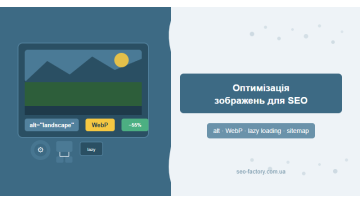
Image optimization is one of the fastest ways to boost page speed and grow organic traffic. Proper alt tags, WebP format, compression and an image sitemap typically deliver a 15–25% traffic lift — without rewriting a single word of content.
Contents
- Why images affect SEO
- File naming best practices
- Alt tags and image title attributes
- WebP, AVIF and format selection
- Compression without quality loss
- Lazy loading and page speed
- Srcset and responsive images
- Image sitemap
- Tools: TinyPNG, Squoosh, PageSpeed
- Optimization checklist
- Frequently asked questions
Why images affect SEO
Images are not just visual decoration. They directly affect page load speed, content relevance, and your chances of appearing in Google Images — a separate search channel with its own traffic. According to Google data, over 22% of US search queries surface images in the main results. For categories like products, recipes, tutorials and travel, that share is even higher.
More importantly, images have a direct impact on the technical metrics Google uses for ranking. A single unoptimized 4 MB photo can increase Largest Contentful Paint (LCP) by 1.5–2 seconds — and that's a critical threshold for Core Web Vitals.
In practice, image optimization on a mid-sized e-commerce store with 3,000+ SKUs consistently delivers measurable results:
- 40–60% reduction in total page weight after switching to WebP
- 18–25% increase in Google Images traffic within 3 months of adding proper alt tags
- 0.8–1.2 s improvement in LCP after lazy loading and compression are configured
- 10–15% conversion uplift from faster mobile load times
According to Google's official documentation, providing detailed, accurate and descriptive alt text helps Google better understand the image and show it in relevant search results.
Images touch multiple SEO factors simultaneously: page speed, textual relevance, accessibility and indexation in Google Images. Addressing all of these at once produces a compounding effect — without the time and budget cost of producing new content.
File naming best practices
This is the simplest step and the most commonly skipped. Google reads the filename before processing the alt tag — it's one of the contextual signals used to understand what an image depicts.
Core naming rules
A handful of principles make images immediately more legible to search engines:
- Latin characters only — non-Latin scripts get URL-encoded into meaningless strings like %D0%B7%D0%BE%D0%B1%D1%80...
- Hyphens between words, not underscores. Google treats a hyphen as a word separator; underscores are treated as part of the word
- Keywords in the name — 2–4 descriptive words, no stuffing
- Unique names — avoid thousands of product-image-1.jpg, product-image-2.jpg files
- Lowercase letters — prevents case-sensitivity issues on Linux servers
In practice:
❌ IMG_20240312_145632.jpg
❌ фото-товару.jpg
❌ photo_product_buy_cheap.jpg
✓ running-shoes-nike-air-max-men.webp
✓ seo-image-optimization-guide.webp
❌ IMG_20240312_145632.jpg
❌ фото-товару.jpg
❌ photo_product_buy_cheap.jpg
✓ running-shoes-nike-air-max-men.webp
✓ seo-image-optimization-guide.webp
For large catalogues with unique SKUs, the pattern category-productname-sku.webp works well — it's both unique and semantically meaningful for search.
Folder structure
Directory organisation matters too. A logical hierarchy helps Google understand context:
/images/products/shoes/running/— much better than/uploads/2024/03//images/blog/seo-optimization/— much better than/media/p/1234/
If your CMS auto-generates paths like /wp-content/uploads/2024/03/IMG_001.jpg, consider configuring a plugin or upload hook to auto-rename files on ingestion.
Alt tags and image title attributes
The alt attribute is the primary SEO signal for any image. It serves three purposes at once: helps Google understand the image content, displays as fallback text when an image fails to load, and is read aloud by screen readers for visually impaired users.
How to write alt tags correctly
Good alt text is an accurate, natural description of what the image shows. The keyword should fit organically — never forced:
| Scenario | Poor alt | Good alt |
|---|---|---|
| Product photo of trainers | shoes buy cheap | Men's Nike Air Max 270 running shoes in grey |
| UI screenshot | screenshot | Configuring the alt tag field in WordPress Yoast SEO |
| Infographic | infographic SEO | Infographic: 7 steps to image optimization for SEO |
| Decorative divider | line divider | alt="" (empty — correct for purely decorative elements) |
Rule: decorative images (icons, backgrounds, borders) must have alt="" — an empty string, not a missing attribute. Without any alt attribute, Google may assume it was simply forgotten; alt="" explicitly signals that the image is decorative and carries no semantic content.
Length and keywords
The sweet spot for alt text is 80–125 characters. Longer text does not directly harm SEO, but screen readers may truncate it. Use the target keyword once, naturally — do not repeat it across every image on the same page.
The title attribute
The title attribute on an <img> tag appears as a tooltip on hover. Its SEO value is minimal — Google has confirmed that the image title is a very weak signal. It does improve UX though: use it to annotate buttons, charts and screenshots with supplementary context. Don't duplicate the alt in the title — if you use it at all, add something new.
WebP, AVIF and format selection
Format choice is a balance between quality, file size and browser compatibility. WebP support now exceeds 97% across browsers; AVIF sits around 92%. That means the vast majority of projects can safely migrate to modern formats without fallback headaches.
Format comparison
| Format | Compression | Browser support | Best for |
|---|---|---|---|
| AVIF | ~50% smaller than JPEG | 92% | Photos requiring maximum compression |
| WebP | 25–35% smaller than JPEG | 97% | General-purpose photos and graphics |
| JPEG | Baseline | 100% | Fallback for legacy browsers |
| PNG | Lossless, larger files | 100% | Images requiring transparency, screenshots |
| SVG | Vector, infinitely scalable | 100% | Logos, icons, simple illustrations |
| GIF | Large for animations | 100% | Replace with WebM or AVIF for motion |
Delivering WebP with graceful fallback
Instead of a plain <img> tag, use the <picture> element — it lets the browser pick the best supported format automatically:
<picture>
  <source srcset="image.avif" type="image/avif">
  <source srcset="image.webp" type="image/webp">
  <img src="image.jpg" alt="Image description" loading="lazy" width="800" height="600">
</picture>
Chrome and Firefox will load AVIF if supported; otherwise WebP; otherwise JPG. Progressive enhancement with zero cost to legacy browsers.
Always specify
width and height on your <img> tags. This lets the browser reserve the correct space before the image loads, preventing CLS (Cumulative Layout Shift) — a Core Web Vitals metric that Google measures directly as a ranking signal.
Compression without quality loss
Compression is the fastest lever for reducing page weight. Most images uploaded straight from a phone or camera weigh 3–8 MB. After proper compression and WebP conversion, the same image typically lands at 80–300 KB with no perceptible difference in quality.
Two types of compression
- Lossless — strips service metadata and optimises encoding without altering any pixels. Achieves 5–20% reduction. Ideal for PNG and cases where pixel-perfect quality is critical.
- Lossy — reduces detail in ways the human eye cannot easily detect. Achieves 40–80% reduction. The standard for web photography.
Target file sizes
Benchmarks to aim for when optimizing different image types:
| Image type | Recommended size | Hard limit |
|---|---|---|
| Hero banner (full-width) | under 150 KB | 300 KB |
| In-content article photo | under 100 KB | 200 KB |
| Product image in catalogue | under 60 KB | 120 KB |
| Thumbnail | under 20 KB | 40 KB |
| Icon / avatar | under 5 KB | 10 KB |
EXIF metadata — what to strip
Every photo from a phone or camera carries EXIF metadata: GPS coordinates, capture date, camera model, ISO settings. This data adds 10–50 KB to each file and has zero SEO value. Compression tools usually strip it automatically — verify this option is enabled in whichever tool you use.
Lazy loading and page speed
Lazy loading defers the loading of images that are outside the visible viewport. The browser fetches them only as the user scrolls down to that part of the page. This significantly reduces initial load time — and it's trivially easy to implement.
Native lazy loading
All modern browsers support native lazy loading. The implementation is a single attribute:
<img src="product.webp" alt="Product name" loading="lazy" width="600" height="400">
Do not apply loading="lazy" to the first image on the page (hero image or the first product in a catalogue). The LCP element must load as fast as possible. Lazy-loading it increases LCP and hurts Core Web Vitals scores directly.
Fetchpriority for the LCP image
For the page's main image — the one most likely to be the LCP element — do the opposite and explicitly raise its load priority:
<img src="hero-banner.webp" alt="Hero banner" fetchpriority="high" width="1200" height="600">This hints to the browser to fetch the image before other resources on the page. Combined with proper compression, it produces a noticeable LCP improvement in PageSpeed audits.
Lazy loading and Googlebot
Googlebot supports lazy loading and correctly indexes images with this attribute. The key caveat: don't hide images behind JavaScript logic that requires user interaction — infinite scroll without SSR, "load more" buttons without static HTML markup. In those cases, Googlebot may not wait long enough for the script to complete.
Srcset and responsive images
The srcset attribute lets you provide multiple versions of an image for different screen sizes and pixel densities (retina displays). The browser picks the optimal version automatically — no JavaScript needed.
Width-based srcset (w descriptor)
The most common approach for responsive content images:
<img
  srcset="product-400.webp 400w,
          product-800.webp 800w,
          product-1200.webp 1200w"
  sizes="(max-width: 600px) 400px,
         (max-width: 1000px) 800px,
         1200px"
  src="product-800.webp"
  alt="Product name"
  loading="lazy"
  width="800"
  height="600">
The sizes attribute tells the browser the actual rendered width of the image at different viewport sizes. Without it, the browser cannot make an informed choice about which source to request.
Pixel-density srcset (x descriptor)
For fixed-size images like icons, logos and avatars, the simpler x-descriptor approach works well:
<img
  srcset="logo.webp 1x, logo@2x.webp 2x, logo@3x.webp 3x"
  src="logo.webp"
  alt="SEO-Factory logo"
  width="120"
  height="40">
Retina displays get the @2x version; standard displays get the base. This prevents blurriness on high-DPI screens while not penalising ordinary devices with oversized downloads.
Across several client projects, properly configured srcset consistently improved median mobile LCP by 0.4–0.7 seconds. That may sound modest, but it's the difference between a green and a yellow Core Web Vitals score when your baseline LCP is 3–4 seconds.
Image sitemap: why and how
An image sitemap is an extension of your standard XML sitemap — or a dedicated separate file — that tells Google about the images on your site. It's particularly valuable in two scenarios:
- Images are loaded via JavaScript (React, Vue, Angular) and Googlebot may not see them during its initial crawl
- Images are primary page content: portfolio sites, galleries, e-commerce stores with large catalogues
Image sitemap format
The image extension is added directly to your existing sitemap.xml entries:
<?xml version="1.0" encoding="UTF-8"?>
<urlset xmlns="http://www.sitemaps.org/schemas/sitemap/0.9"
        xmlns:image="http://www.google.com/schemas/sitemap-image/1.1">
  <url>
    <loc>https://example.com/products/shoes/</loc>
    <image:image>
      <image:loc>https://example.com/images/shoes-nike-air-max.webp</image:loc>
      <image:caption>Nike Air Max 270 men's running shoes</image:caption>
      <image:title>Nike Air Max 270</image:title>
    </image:image>
  </url>
</urlset>
What to include in the image sitemap
You don't need to list every single image — focus on the ones that matter:
- Product images — especially unique ones that can generate traffic from Google Images
- Blog and article images — featured images and infographics
- JS-loaded images — highest priority for bots that may not fully execute scripts
Exclude from the image sitemap: UI icons, logos, decorative backgrounds, social share icons. They don't generate search traffic and just bloat the file unnecessarily.
Once you've created or updated the image sitemap, submit it in Google Search Console and request indexation. Typically Google processes newly sitemapped images within 1–4 weeks.
Tools: TinyPNG, Squoosh and PageSpeed
Having the right tools makes image optimization a straightforward process rather than a chore. Here are the main options with their practical trade-offs.
TinyPNG / TinyJPG
The simplest online tool for PNG and JPEG compression. Uses a lossy algorithm, but the visual result is practically indistinguishable from the original. Free for up to 20 images at a time, with an API for automation. Downside — it doesn't convert to WebP.
Squoosh (squoosh.app)
A free tool built by Google. Supports all modern formats: WebP, AVIF, MozJPEG, OxiPNG. Includes a before/after comparison slider — great for manually tuning the quality-versus-size balance. Best choice for one-off compression where you want hands-on control over the output.
ImageOptim (macOS) / FileOptimizer (Windows)
Desktop tools for batch lossless compression. ImageOptim strips EXIF metadata automatically. Ideal for processing large volumes of images before uploading to the site.
Google PageSpeed Insights
Identifies specific images that need optimizing, alongside the potential saving in bytes and load time. The "Opportunities" section is the first place to look when auditing a page. It integrates directly into our website SEO promotion workflow.
CMS automation tools
For WordPress: Imagify, ShortPixel or Smush plugins automatically compress and convert images on upload. For custom CMS platforms — integrate the TinyPNG API or run a server-side converter (ImageMagick, libvips) in the upload pipeline.
| Tool | Type | WebP/AVIF | Batch processing | Price |
|---|---|---|---|---|
| TinyPNG | Online | No | Up to 20 files | Free / API paid |
| Squoosh | Online | Yes | No (1 file) | Free |
| Imagify | WP plugin | Yes | Yes | $4.99/month |
| ShortPixel | WP plugin / API | Yes | Yes | 100 img/month free |
| PageSpeed Insights | Audit tool | — | — | Free |
CDN and image caching
Even a perfectly optimized image will load slowly if the server is geographically distant from the user. A CDN (Content Delivery Network) is a global network of servers that cache copies of your static files and serve them from the node closest to each visitor — cutting round-trip latency dramatically.
What CDN delivers for images specifically
The practical benefits for image delivery:
- Geographic speed — images served from a node 20–50 ms away instead of 200–500 ms from a central server
- Server offload — 70–90% of image traffic moves through the CDN, taking pressure off your origin server
- Automatic format conversion — modern CDNs (Cloudflare, BunnyCDN, Imgix) can serve WebP or AVIF automatically based on the requesting browser, with no code changes
- On-the-fly resizing — some CDNs resize images dynamically via URL parameters:
image.cdn.com/photo.jpg?w=400&f=webp
HTTP caching headers
For images that rarely change — logos, icons, product photos — set a long Cache-Control header:
Cache-Control: public, max-age=31536000, immutableThis tells browsers to cache the image for a year. To force a refresh, simply rename the file or append a version hash (logo.v2.webp). For images that update frequently, use max-age=86400 (1 day) or max-age=604800 (1 week).
Check your current caching state via PageSpeed Insights or Chrome DevTools → Network. Images with no Cache-Control header, or with
no-cache, are re-downloaded on every page visit — wasted bandwidth and slower loads for returning visitors.
Structured data for images
Beyond the image sitemap, you can mark up images with schema.org to improve your chances of appearing in rich results — search snippets that include a visual preview of the image.
ImageObject in JSON-LD
For product pages, recipes and articles, add an ImageObject inside the relevant schema. Example for a blog post:
{
  "@context": "https://schema.org",
  "@type": "Article",
  "headline": "Image Optimization for SEO",
  "image": {
    "@type": "ImageObject",
    "url": "https://example.com/images/seo-image-optimization.webp",
    "width": 1200,
    "height": 630,
    "caption": "Diagram of SEO image optimization workflow"
  }
}
Attributes worth including in ImageObject:
- url — absolute URL of the image
- width / height — dimensions in pixels
- caption — descriptive caption (the structured-data equivalent of alt text)
- contentUrl — if the image is hosted on a CDN domain different from your main domain
- license — URL of the image licence (required to participate in Google's Image licensing feature)
Open Graph and Twitter Cards
OG tags don't affect search rankings directly, but they control which image is shown when a page is shared on social media. A compelling OG image raises click-through rates on shares, indirectly driving additional traffic:
<meta property="og:image" content="https://example.com/images/article-cover.webp">
<meta property="og:image:width" content="1200">
<meta property="og:image:height" content="630">
<meta property="og:image:alt" content="Image optimization for SEO guide">
The recommended OG image size is 1200×630 pixels. Images narrower than 600 pixels will be rendered as small thumbnails beside the text on Facebook and Telegram, rather than the large card format that drives clicks.
Auditing images on an existing site
If your site already has hundreds or thousands of pages, where do you even start? Prioritization is everything — otherwise the task feels endless and nothing gets done.
Step 1: Find the heaviest images
Run Screaming Frog SEO Spider with the Images module enabled. It lists every image on the site with its file size and every page it appears on. Sort by size and start with anything above 500 KB — those are your quick wins.
Alternatively, run Google PageSpeed Insights on your highest-traffic pages: home, category pages, top landing pages. The "Serve images in next-gen formats" and "Properly size images" opportunities show the biggest potential savings in concrete kilobytes and milliseconds.
Step 2: Audit alt tags at scale
Screaming Frog also reports on alt attributes: images with no alt, images with alt="" (decorative), images with excessively long alt text. This surfaces the scope of the problem without manually inspecting every page.
For large e-commerce catalogues on WooCommerce or Shopify, check the database: do all products have populated alt/description fields? Bulk-generating alt text from product name plus category is a reasonable starting point if you don't have the resources for manual writing at scale.
Step 3: Cross-reference Core Web Vitals in Search Console
Google Search Console → Core Web Vitals identifies which pages have LCP problems. For most pages, the LCP element is an image — so optimizing that specific image is the highest-leverage action you can take for Core Web Vitals performance.
Step 4: Build processes that prevent regression
An audit fixes the accumulated debt, but it doesn't stop new problems from appearing. To avoid running the same audit every few months, bake the rules into your content workflow:
- Automatic WebP conversion on CMS upload
- Mandatory alt text field in the image upload form
- File size warnings for uploads exceeding 500 KB
- Automatic thumbnail generation in multiple sizes for srcset
Sites that implement automatic WebP conversion at the CMS level consistently show median page weights 35–40% lower than competitors in the same niche within six months — with no ongoing manual effort required once the pipeline is in place.
Mobile image optimization: key considerations
Google uses mobile-first indexing — it crawls and evaluates your site primarily through its mobile version. That makes mobile image optimization the priority, even if most of your conversions happen on desktop.
Common mobile image mistakes
The most frequent issues we encounter during mobile audits:
- No srcset — mobile browsers download the 1200px desktop image instead of a 400px mobile version, burning through data and load time
- Oversized hero images — a full-width 1920px banner on a 390px screen: 800 KB downloaded, maybe 100 KB actually rendered
- Missing width and height — without explicit dimensions, the browser can't reserve space, CLS spikes as images load in and push content around
- Autoplay GIF or unmuted video — iOS Safari doesn't autoplay these, leaving an empty block where content should be
Art direction with <picture>
Sometimes mobile needs a fundamentally different image, not just a smaller one — cropped differently, vertical orientation, subject filling more of the frame. This is called art direction and is handled through the media attribute in <picture>:
<picture>
  <source media="(max-width: 600px)"
          srcset="hero-mobile.webp">
  <source media="(min-width: 601px)"
          srcset="hero-desktop.webp">
  <img src="hero-desktop.webp" alt="Hero banner" width="1200" height="600">
</picture>
The mobile version hero-mobile.webp might be a portrait 600×800 crop focused tightly on the subject, while the desktop version is the full-width 1200×600 landscape. Both look intentionally designed — far better than letting CSS crop a single image in ways you didn't plan for.
Image optimization checklist
Run through each item before publishing a new page, or use it as the basis for an audit of existing content:
- ✓ File naming — Latin characters, hyphens, keywords in the filename
- ✓ Format — WebP or AVIF for photos, SVG for vector graphics, PNG only where transparency is required
- ✓ Compression — file sizes meet the recommended targets for each image type
- ✓ Alt tags — every meaningful image has a descriptive alt with a keyword; decorative images have alt=""
- ✓ Dimensions — width and height specified on every <img> element
- ✓ Lazy loading — loading="lazy" on all below-the-fold images
- ✓ Fetchpriority — fetchpriority="high" on the LCP image
- ✓ Srcset — responsive variants provided for variable-width images
- ✓ Picture element — WebP/AVIF sources with JPEG fallback via <picture>
- ✓ Image sitemap — product and content images included
- ✓ EXIF stripped — metadata cleaned during compression
- ✓ CDN — images served via CDN for international audiences
For larger sites, we recommend running an image audit quarterly using PageSpeed Insights or Screaming Frog (Images plugin). Even well-optimized sites accumulate 50–100 unoptimized images every 3–6 months as content teams upload new material without enforced guidelines.
Image optimization is an ongoing discipline, not a one-time task. Embedding the rules into your CMS workflow — automatic conversion on upload, mandatory alt fields in the editor, size validation warnings — lets you maintain quality without manually reviewing every file. For a broader technical health check, see our guide to technical SEO audits.
Frequently asked questions
Is switching to WebP format mandatory for SEO?
WebP is not mandatory, but it delivers a clear advantage: files are 25–35% smaller than JPEG at equivalent visual quality. Google actively recommends modern formats to improve LCP and Core Web Vitals scores. If your CMS or CDN supports conversion, the switch is well worth it.
How long should an alt tag be?
The optimal alt text length is 80–125 characters. It should accurately describe the image content and naturally include a relevant keyword. Avoid keyword stuffing — alt="buy phone cheap london" is spam, not a description.
Does a small website need an image sitemap?
An image sitemap is useful for any site where images are important content — e-commerce stores, portfolios, illustrated blogs. It helps Google discover images loaded via JavaScript and speeds up their indexation.
How should image files be named for SEO?
Use lowercase Latin characters, hyphens between words, and relevant keywords in the filename. For example: seo-image-optimization-guide.webp instead of IMG_20240312.jpg. This helps Google understand the image context before even processing the alt tag.
Need image optimization for your website?
We'll audit your images, migrate to WebP, configure alt tags and build an image sitemap. First results typically appear within 4–6 weeks.
Get SEO promotion