Your shopping cart is empty!
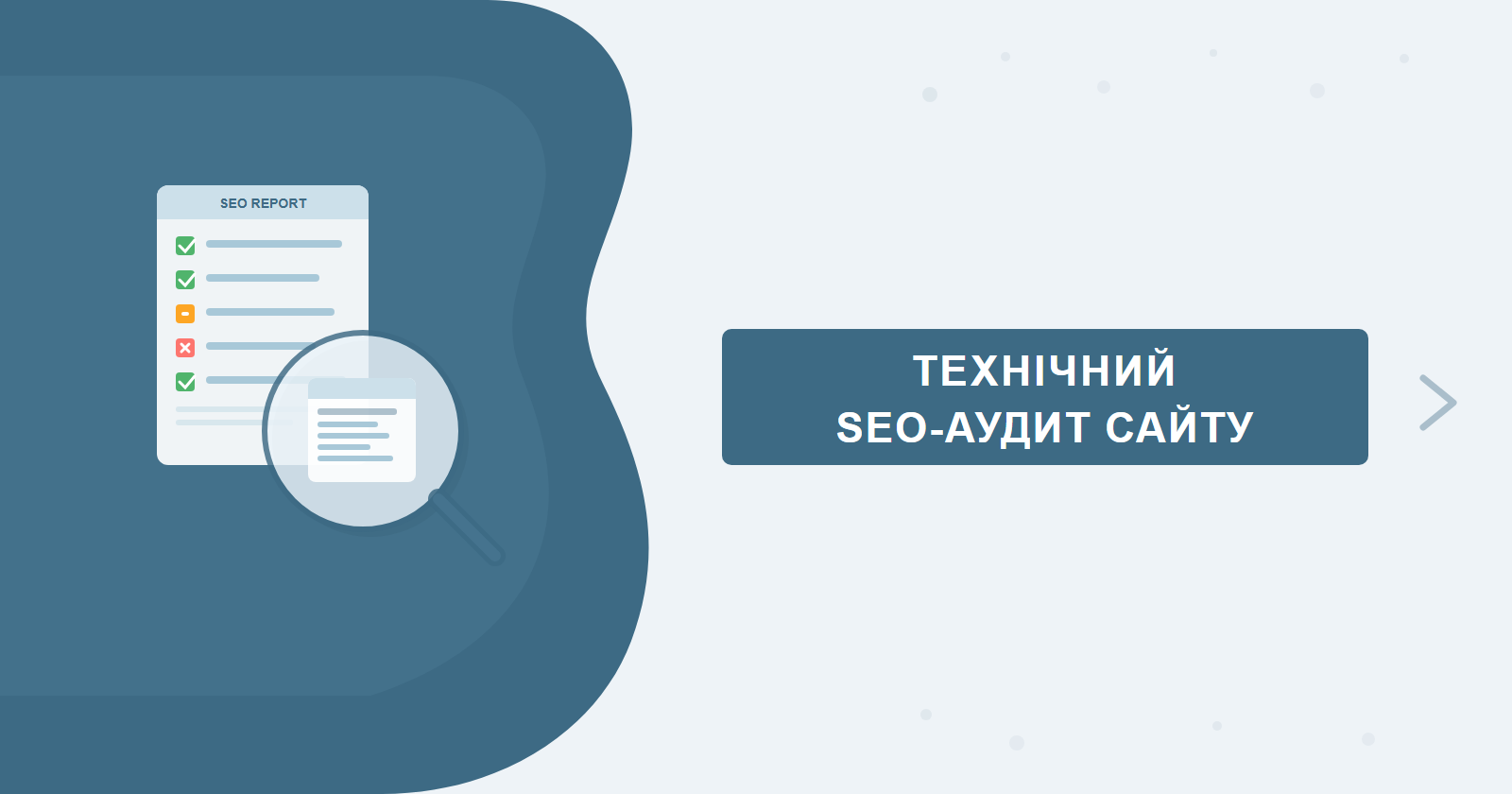
Most websites that stagnate in search rankings don't have a content problem or a backlink deficit — they have technical blockers preventing search engines from properly crawling and understanding the site. A technical SEO audit is a diagnostic process that surfaces these blockers before you invest budget in content creation or link building.
This guide covers a structured audit methodology: what to check, which tools to use, and how to prioritize fixes so your effort translates into ranking improvement. It works both as a hands-on checklist and as a brief for your development team. If you'd rather have it done by professionals, SEO-Factory offers full-cycle SEO website promotion services.
Contents
- What a technical audit covers
- Preparing for the audit: essential tools
- Crawling and crawl budget
- Indexation: robots.txt, sitemap, GSC
- Duplicate content and canonicalization
- Core Web Vitals and page speed
- Mobile optimization
- HTTPS, redirects and URL structure
- Structured data and Schema.org
- Audit report and deliverables
- How to prioritize fixes
What a Technical Audit Covers
Technical SEO encompasses everything that affects a search engine's ability to discover, crawl, and index your pages. Unlike content or link analysis, there's no ambiguity here — either an issue exists or it doesn't.
Core audit areas:
- Crawling — can Googlebot reach all important pages without restrictions
- Indexation — which pages are in the search index, and which are blocked
- Speed and Core Web Vitals — compliance with Page Experience requirements
- Mobile version — correct Mobile-First indexation implementation
- HTTPS and security — valid SSL and proper redirect setup
- URL structure — readability, canonicalization, redirect chains
- Duplicate content — technical duplicates, canonical tags
- Schema.org and markup — structured data, hreflang, Open Graph
Preparing for the Audit: Essential Tools
Before running an audit, you need the right tool stack. Each tool covers a specific area — none of them replaces the others.
Google Search Console
Free and irreplaceable. Before auditing, make sure the site is verified: add an HTML tag in <head>, upload a verification file, or confirm via DNS record. If both www and non-www versions exist — verify both and set a preferred property. Connect GSC to Google Analytics 4 via the "Links" section in GA4: this lets you analyze organic keywords directly in GA4 and track conversions by search query.
Google Analytics 4
Key audit reports: "Engagement" → "Pages and screens" (which pages get traffic and convert), "Acquisition" → "Organic Search" (search traffic). After linking with GSC, a "Search Console" report appears in GA4 with organic queries and positions — giving you a complete before/after picture of audit impact.
Screaming Frog SEO Spider
The free version crawls up to 500 URLs — sufficient for small sites. For larger sites, a license is around £149/year. Key settings before crawling:
- JavaScript rendering: Configuration → Spider → Rendering → select "JavaScript". This allows Screaming Frog to render pages like a browser and find content loaded via JS. Critical for SPAs and React/Vue sites.
- Custom Extraction: Configuration → Custom → Extraction — extract arbitrary data via CSS selector or XPath. For example, verify canonical presence on every page or pull a specific meta tag.
- Crawl limits: for large sites, set a depth limit (Configuration → Spider → Limits → Max Crawl Depth) to avoid spending time on deeply nested pages.
- Crawl a sitemap: Mode → List → load sitemap.xml to check only URLs from the sitemap.
Ahrefs Site Audit or Semrush Site Audit
Cloud-based crawlers — no software installation, ready-made reports with categorized errors. Ahrefs is strong at detecting internal link issues and orphan pages. Semrush provides a more detailed Core Web Vitals and HTTPS report. Both work well for ongoing monitoring: set up a weekly automated crawl and receive alerts about new issues.
Server Access
For a thorough audit of a large site, server log files are valuable — they show which pages Googlebot actually crawled and how often. Access via cPanel (Logs / Raw Access Logs section) or SSH (cat /var/log/nginx/access.log | grep Googlebot). Log analysis tools: Screaming Frog Log File Analyser or Botify. If Googlebot isn't visiting important pages — that's a crawl budget problem signal.
Minimum starter stack: Google Search Console + Screaming Frog (free version) + PageSpeed Insights. Sufficient for auditing a site under 500 pages and catching 80% of critical issues.
Crawling and Crawl Budget
The first step is understanding how Googlebot sees your site. Run a full crawl in Screaming Frog. The output is a complete list of URLs with status codes, response headers, page titles, and crawl depth.
What to look for:
- 4xx status pages — broken links and non-existent pages. They accumulate crawl errors in GSC and drain crawl budget.
- Redirect chains — 301 → 301 → 301. Google recommends no more than one redirect hop. Each additional hop wastes PageRank and slows crawling.
- Deep page hierarchy — pages that require 5+ clicks from the homepage. Critical pages should be reachable within 3 clicks.
- Orphan pages — pages with no internal links pointing to them. The crawler may simply never find them.
Tip: In GSC, check the Coverage report. Compare the total URL count from Screaming Frog with the indexed page count in GSC — a gap of more than 15–20% warrants investigation.
Crawl budget matters for large sites (10,000+ pages). If a site generates thousands of parametric URLs (e.g., faceted navigation filters), a large share of the budget gets spent on low-value pages instead of important ones. These are exactly the issues uncovered during a professional SEO audit and promotion.
Indexation: robots.txt, Sitemap, GSC
Robots.txt is the first file a search bot reads when it visits a site. A single error here can block entire sections — or the entire site — from indexation. This happens after CMS migrations or after "temporarily" blocking the site during development and forgetting to unblock it.
How to read robots.txt and common errors
The file lives at https://example.com/robots.txt. The directive Disallow: / forbids crawling the entire site — one of the most destructive errors possible. Other common problems:
- Blocked CSS/JS:
Disallow: /wp-content/themes/orDisallow: *.js— Google can't render pages, sees them as bare HTML. Check in GSC → URL Inspection Tool → "Does Google allow viewing this page?" - Blocked WordPress admin-ajax: blocking
/wp-admin/is correct, but not/wp-admin/admin-ajax.php— it's needed for AJAX requests. - Disallow: / for all Googlebot — most often a development leftover. Check after every migration.
XML sitemap: valid format and updates
Sitemap.xml must contain only canonical URLs returning status 200 without noindex. For large sites, use a sitemap index — a file linking to individual sitemap files by section (products, articles, categories). Each sub-file — no more than 50,000 URLs or 50 MB.
The lastmod field should reflect actual content update dates. Setting the same date for all pages makes Google ignore the signal entirely. After each publication, new content should appear in the sitemap automatically (if the CMS is configured correctly) or be added manually.
Google Index Coverage Report
In GSC → Coverage, four statuses:
- Valid — indexed, all good.
- Valid with warning — indexed but flagged (e.g., page is in sitemap but has noindex).
- Excluded — not indexed, Google considers this normal (noindex, canonical to another page, duplicate).
- Error — problem: 404, server error (5xx), blocked by robots.txt, redirect.
Errors and warnings need immediate attention. For each Error status page, use the URL Inspection Tool — it shows exactly what Google sees when crawling.
Requesting indexation via GSC
After fixing an error or publishing a new page: GSC → URL Inspection → enter URL → "Request Indexing". Google checks the page within hours to days. To get new URLs indexed at scale, update the sitemap — GSC checks it automatically on a regular basis.
Soft 404 vs 404: the difference and the fix
Hard 404 — server returns a 404 status code, page doesn't exist. Correct approach: if a page is permanently gone — return 404 or 410 (Gone). If it moved — return 301 to the new URL.
Soft 404 — server returns code 200, but the content says "product not found" or "no results found". Google sees a near-empty page with a 200 code and wastes crawl budget on it. Fix: configure "not found" and "no results" pages to return a real 404.
On one e-commerce project with 12,000 products, we found 3,400 soft-404 pages — sold-out products returning 200 with "out of stock" text. After switching them to 410, crawl budget freed up for important category pages, and indexed page count grew by 18% within 6 weeks.
Duplicate Content and Canonicalization
Google doesn't directly penalize for duplicates, but wastes crawl budget on them and dilutes PageRank across page copies. As a result, none of the versions rank as well as they could.
Types of duplicates and causes
| Duplicate type | Cause | Fix |
|---|---|---|
| HTTP vs HTTPS | No 301 redirect | Add 301 redirect |
| www vs non-www | No preferred domain set | 301 + GSC preferred domain |
| Filter URL parameters | ?sort=price, ?color=red, etc. | Canonical or noindex |
| Pagination pages | /page/2, /page/3... | Self-canonical on each |
| Trailing slash variants | /blog and /blog/ as different URLs | Pick one variant + 301 |
| Printer-friendly versions | /print/ or ?format=print | Canonical to main page |
| Session parameters | ?sessionid=abc123 | Canonical or GSC parameters |
Canonical tag: correct implementation
Canonical tag in <head>: <link rel="canonical" href="https://example.com/canonical-url/">. Unique page — self-canonical. Duplicate — canonical pointing to the original.
Common mistakes:
- Canonical points to a noindex page — conflicting signal.
- Canonical chain: page A canonical → B, B canonical → C. Google may not accept C as canonical. Always point to the final URL.
- Canonical conflicts with hreflang: if language versions have canonical pointing to the main language — Google ignores hreflang.
- Canonical pointing to a redirect — it must point to the final destination, not the redirect URL.
hreflang for multilingual sites
If the site has language versions, hreflang tells Google which version to show to which audience. Basic format:
<link rel="alternate" hreflang="en" href="https://example.com/en/page/">
<link rel="alternate" hreflang="de" href="https://example.com/de/page/">
<link rel="alternate" hreflang="x-default" href="https://example.com/page/">
Tags must be reciprocal: if the EN version links to the DE version, the DE version must link back to EN. Verify using Screaming Frog (Hreflang → Hreflang All) or GSC → International Targeting.
Tip: Use the hreflang Tags Testing Tool from TechnicalSEO.com — it checks tag reciprocity and flags conflicting canonical declarations.
Core Web Vitals and Page Speed
Since 2021, Core Web Vitals have been an official Google ranking signal. In competitive niches where other signals are equal, poor CWV scores give your competitors an edge.
How to check: PageSpeed Insights shows both lab and field data (real users from Chrome UX Report). Focus on field data — that's what influences rankings. GSC → Core Web Vitals shows aggregated scores across all pages.
Common LCP issues: slow server (TTFB > 800ms), hero image missing fetchpriority="high", render-blocking CSS/JS in <head>, no CDN for static assets.
Common CLS issues: images without width/height attributes, ad slots injecting content after page load, fonts without font-display: swap.
Mobile Optimization and Mobile-First Indexation
Since 2023, Google evaluates the mobile version of your page, not the desktop. If the mobile version has less content or rendering issues — those problems directly affect rankings.
What to check:
- Mobile version contains the same content as desktop (text, images, schema markup)
- Viewport meta tag:
<meta name="viewport" content="width=device-width, initial-scale=1"> - Links and buttons are large enough to tap — minimum 48×48 px
- No overlapping elements, no horizontal scroll
Tool: GSC → Mobile Usability shows specific pages with issues. Also use Google's Mobile-Friendly Test to check individual URLs.
HTTPS, Redirects and URL Structure
HTTPS
Having SSL installed doesn't mean it's implemented correctly. Common mistakes: not all pages redirect from HTTP to HTTPS, mixed content on the page, internal links use HTTP, SSL certificate is expired.
URL structure and redirects
A page URL should be human-readable and contain the target keyword: /services/seo-promotion/ — good; /p=1423 — bad.
- URLs with parameters without canonical or noindex — block them
- URL duplication with and without trailing slash — pick one, add 301
- Redirect chains 301→301 — replace with a direct redirect to the final URL
- 302 redirects where 301 should be used — fix them
Structured Data and Schema.org
Structured markup is not a direct ranking signal, but it enables rich snippets in search results — star ratings, prices, FAQs, breadcrumbs. This lifts CTR by 20–30% even without a position change.
Schema types that generate rich snippets
| Schema type | Rich snippet | Where to use |
|---|---|---|
| FAQ | Expandable Q&A under the snippet | Service pages, landing pages |
| HowTo | Step-by-step instructions with icons | Guides, tutorial articles |
| Product + Review | Stars, price, availability | E-commerce product pages |
| BreadcrumbList | Breadcrumb path instead of URL | All site pages |
| Organization | Company knowledge panel | Homepage |
| LocalBusiness | Address, phone, opening hours | Contact page, local landing |
JSON-LD vs Microdata
Google recommends JSON-LD — markup placed inside a <script type="application/ld+json"> block in <head> or before </body>. Advantage: no HTML structure changes required, easy to maintain, can be injected via GTM. Microdata embeds into HTML attributes — more labour-intensive and prone to errors when templates are updated.
Validation and error handling
Validate using Google's Rich Results Test — shows which rich snippets are eligible for a page and where errors are. In GSC → Enhancements, you'll find structured data errors across the entire site: wrong field type, missing required property, type mismatch.
Important: Review markup (star ratings) on your own company pages without a third-party aggregator — Google increasingly ignores or flags this as manipulative. For stars in the snippet, you need a review aggregator (Trustpilot, Google Reviews) or a Product/Recipe schema with genuine third-party reviews.
Audit Report and Deliverables
A completed audit without a quality report is wasted effort. A good report isn't a list of errors with screenshots — it's a working document your development team can act on immediately.
How to categorize findings
All findings split into three tiers:
- Critical: block indexation or crawling. Fix immediately. Examples: Disallow: / in robots.txt, mass noindex on important pages, broken SSL, redirect chains on main pages.
- Important: reduce effectiveness but don't block. Fix within 2–4 weeks. Examples: poor CWV scores, missing canonicals on duplicates, hreflang errors, sitemap with 404 pages.
- Low priority: minor impact, fix in the next sprint. Examples: missing alt tags on decorative images, suboptimal meta descriptions, redundant HTML attributes.
Technical report format for clients
Recommended structure: executive summary (3–5 sentences on site health and key risks) → summary table by block (crawling, indexation, CWV, mobile, duplicates, Schema) → detailed section for each block with specific URLs and screenshots → fix tracker with owners and deadlines.
Fix tracker
Google Sheets is the simplest option. Columns: issue description | URL / template | priority | owner | deadline | status | verification date. After fixing — mark "Fixed", after re-indexation — "Confirmed in GSC". This keeps progress visible and prevents the same issues from resurfacing.
Re-audit after 30–60 days
The first audit establishes the "before" state. A follow-up audit after 30–60 days measures impact: how many GSC errors disappeared, how CWV metrics changed, whether indexed page count increased. It also surfaces new issues that may have emerged after site updates.
Audit KPIs
Measure audit outcomes with concrete before/after metrics:
- % of indexed pages out of total (target: >90% for important sections)
- Number of errors in GSC Coverage (target: 0 or minimal)
- PageSpeed Score (target: >70 mobile, >85 desktop)
- LCP, INP, CLS in GSC field data (target: "Good" for 75%+ of pages)
- Pages in sitemap vs. indexed pages (gap <10%)
How to Prioritize Fixes After an Audit
A typical mid-size site audit surfaces 50–200 issues. The right approach: a 2x2 matrix of SEO impact vs. implementation effort.
| Quadrant | Impact | Effort | Action | Examples |
|---|---|---|---|---|
| Fix first | High | Easy | This week | Robots.txt, canonical, 301 redirects |
| Plan & schedule | High | Hard | Next sprint | CWV optimization, URL structure rework |
| Do after critical items | Low | Easy | As capacity allows | Meta descriptions, alt tags |
| Defer | Low | Hard | Reassess later | Full redesign for minimal SEO gain |
In practice, 20% of technical errors account for 80% of negative ranking impact. Find those 20% and fix them — results typically show within 2–4 weeks after Google re-crawls the affected pages.
Frequently Asked Questions
What does a technical SEO audit include?
A technical audit covers 6 areas: indexation (robots.txt, sitemap, GSC Coverage), page speed and Core Web Vitals, URL structure and redirects, meta tags and duplicate content, mobile optimization, and Schema.org structured data. Additional checks include HTTPS, internal linking, and crawl budget management.
How often should a technical SEO audit be conducted?
A full audit should be done every 6–12 months. After major site changes (migration, redesign, new sections) — always run an unplanned audit. Running a basic automated crawl (Screaming Frog or Ahrefs Site Audit) monthly is recommended for early detection of issues.
What tools are used for a technical SEO audit?
The core toolkit includes: Screaming Frog (crawling), Google Search Console (indexation and errors), PageSpeed Insights / Lighthouse (speed), Ahrefs or Semrush Site Audit (comprehensive checks). For structured data testing — Google Rich Results Test. All core tools have free versions or trial access.
How long does a technical audit take and when can you expect results?
The audit itself takes 1–3 days depending on site size. After fixes are applied, Google typically needs 2–8 weeks to recrawl and reindex pages. Critical errors (5xx status codes, important pages blocked by robots.txt) can be fixed and reindexation accelerated via the GSC "Inspect URL" request.
Need a technical SEO audit?
The SEO-Factory team conducts full technical audits with a detailed report and fix roadmap. We identify priorities, deliver a clear action plan, and verify results after 30–60 days — no generic recommendations, only actionable findings.