Your shopping cart is empty!
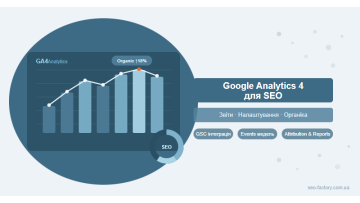
GA4 for SEO is more than an analytics upgrade — its event model, Search Console integration, and Explore reports let you measure organic traffic with a precision Universal Analytics never offered.
Contents
- GA4 vs Universal Analytics: what changed for SEO
- Organic traffic reports in GA4
- Integrating Google Search Console
- Behavioral metrics: how to read and interpret them
- Tracking conversions from organic traffic
- Custom dimensions for SEO
- Configuring channel grouping
- Attribution in GA4: what every SEO needs to know
- Exploration reports: advanced organic analysis
- GA4 SEO setup checklist
- Frequently asked questions
GA4 vs Universal Analytics: what changed for SEO
Universal Analytics officially stopped collecting data in July 2023. For SEO professionals, this wasn't just a tool swap — the entire measurement logic changed. GA4 has no sessions in the traditional sense; everything is built on events.
Here are the key changes that directly affect SEO analysis:
| Parameter | Universal Analytics | Google Analytics 4 |
|---|---|---|
| Measurement unit | Session / pageview | Event |
| Engagement signal | Bounce rate (% with no interaction) | Engagement rate (% of engaged sessions) |
| Goals / Conversions | Goals (up to 20 per property) | Conversions (unlimited) |
| GSC reports | Separate section, basic integration | Full Acquisition → Search Console section |
| Cross-device | Limited support | Native via User ID and Google Signals |
| Attribution model | Last-click by default | Data-driven by default |
| Sampling | Common in free tier | Less frequent; Explore may sample large date ranges |
We've seen clients panic after migration when their bounce rate appeared to "plummet" — in reality, it's purely a methodology difference. GA4's engagement rate captures sessions lasting more than 10 seconds or containing at least two pageviews. A healthy organic engagement rate sits around 55–70%, roughly equivalent to a UA bounce rate of 30–45%.
Note: never compare UA and GA4 data directly. The methodological gap can create apparent discrepancies of 20–40% in headline metrics. Set separate baselines for GA4 starting from its launch date.
Organic traffic reports in GA4
GA4 gives you several entry points for organic traffic analysis. The main ones live under Reports → Acquisition:
Traffic Acquisition
The foundational report for understanding traffic sources. The Organic Search channel covers traffic from search engines. Default columns include:
- Sessions — total organic sessions
- Engaged sessions — sessions with real interaction (10s+ or 2+ pageviews)
- Engagement rate — share of engaged sessions
- Average engagement time per session — mean active interaction time
- Conversions — conversion count from organic
- Total revenue — revenue if e-commerce is configured
Landing Page Report
Found at Reports → Engagement → Landing page. This is one of the most valuable reports for SEO. It shows which pages users enter from search. To isolate organic traffic, click Add filter → Session source/medium → Contains → google/organic.
Key metrics for landing page analysis:
- Sessions — organic traffic volume per page
- Engagement rate — traffic quality (healthy SEO range: 50–70%)
- Average engagement time — depth of interaction
- Conversions — ultimate page effectiveness
Pages with an engagement rate below 40% and substantial organic traffic are your first candidates for a content audit. They almost certainly fail to satisfy search intent.
Pages and Screens
Reports → Engagement → Pages and screens. Shows behaviour across all pages. Apply an organic traffic filter to see how many Google users view specific pages, even if those pages aren't entry points.
Integrating Google Search Console
Connecting GSC to GA4 is non-negotiable for proper SEO analysis. Without it you see traffic volume but have no idea which queries drove it.
How to connect GSC to GA4
- Go to Admin → Property → Product links → Search Console links
- Click Link
- Authorise and select your Search Console property
- Confirm the link
- Data will appear within 24–48 hours under Acquisition → Search Console
Requirement: you need to be an administrator on both the GA4 property and the Search Console property. Missing admin rights on either side will block the connection.
Reports available after connecting GSC
Once linked, the Acquisition → Search Console section gives you four reports:
- Queries — search queries, clicks, impressions, CTR, average position
- Google organic search traffic — traffic by device and country
- Landing pages — which pages receive organic traffic and for which queries
- Countries — geographic distribution of organic traffic
The Queries + Landing pages combination is the most powerful pairing: it merges GSC data (rankings, CTR) with GA4 behavioural data (engagement, conversions). You can finally see which queries attract genuinely engaged users and which ones only deliver high-volume, low-quality sessions.
GSC data retention in GA4: Search Console data in GA4 is stored for 16 months. Crucially, GA4 will not show data predating the connection. Connect as early as possible to maximise your historical dataset.
For a deeper look at Search Console workflows, see our guide: Google Search Console Complete SEO Guide.
Behavioral metrics: how to read and interpret them
GA4's behavioral metrics feed directly into SEO strategy. Here's how to interpret them correctly:
Engagement Rate
Replaced bounce rate. An engaged session is one that lasted more than 10 seconds, resulted in a conversion, or included two or more pageviews.
- Engagement rate below 40% — page fails to match intent, or there's a technical issue
- Engagement rate 40–60% — acceptable for informational content
- Engagement rate 60–80% — strong result for commercial queries
- Engagement rate above 80% — excellent, typical for well-targeted landing pages
Average Engagement Time per Session
Measures active interaction time — not just an open tab. GA4 tracks time when the tab is actually in focus. Expected ranges vary by page type:
| Page type | Expected engagement time | Warning signal |
|---|---|---|
| Blog article (3000+ words) | 3–6 minutes | Under 1 minute |
| Category / catalogue | 1–3 minutes | Under 30 seconds |
| Service page | 1–2 minutes | Under 40 seconds |
| Homepage | 30s – 1 minute | Under 15 seconds |
Scroll Depth
GA4 automatically fires a scroll event when a user scrolls 90% of the page. If fewer than 30% of organic sessions trigger this event, either the content isn't compelling or the page loads too slowly — and users leave before getting there.
Clicks and File Downloads
GA4 auto-tracks external link clicks (event click) and file downloads (event file_download). These signals reveal whether a page functions as a resource hub — relevant for assessing the E-E-A-T potential of your content.
Tracking conversions from organic traffic
One of GA4's biggest improvements for SEO is flexible conversion tracking. Unlike UA's 20-goal ceiling, GA4 lets you mark an unlimited number of events as conversions.
Which events to mark as conversions for SEO
To measure organic traffic's business impact, we recommend marking these as conversions:
- form_submit or generate_lead — form enquiries
- phone_click — phone number clicks
- email_click — email link clicks
- purchase — completed orders (for e-commerce)
- add_to_cart — basket additions
- page_view with a specific URL — thank-you page or registration completion view
To mark an event as a conversion: Admin → Property → Conversions → New conversion event. Enter the exact event name and save.
Conversions by Channel report
Reports → Advertising → Performance → Conversions by default channel group. Shows how many conversions each channel generated, including Organic Search. You can compare:
- Conversion count vs session count (conversion rate)
- Organic Search vs Paid Search (ROI comparison)
- Month-over-month organic conversion trends
In our projects, informational blogs typically convert organic traffic at 0.8–2.5%, while paid ads deliver 3–6%. But organic traffic carries a far lower marginal cost at scale.
To dig deeper into the organic conversion funnel, explore our website promotion services.
Custom dimensions for SEO
Custom dimensions are one of the most powerful yet underused GA4 features for SEO. They let you pass additional page and session parameters into analytics — parameters that don't exist by default.
Useful custom dimensions for SEO
| Dimension | Values | SEO use case |
|---|---|---|
| content_type | blog, category, product, service | Compare performance across content types |
| page_cluster | semantic cluster name | Identify which topic clusters convert best |
| author | author name | E-E-A-T analysis: whose content drives better engagement |
| publish_date_bucket | new (0-30d), recent (31-180d), old (180d+) | Measure the impact of content freshness on behavior |
| word_count_bucket | short, medium, long | Which content length drives better engagement |
| has_schema | true/false | Impact of structured data on CTR and engagement |
How to set up custom dimensions
- Go to Admin → Property → Custom definitions
- Click Create custom dimension
- Enter a name (e.g.,
content_type) and select Event parameter as the scope - Save
- Pass values via GTM (Data Layer) or inline:
gtag('event', 'page_view', {'content_type': 'blog'})
GA4 limit: up to 50 event-level and 25 user-level custom dimensions per property. Plan them carefully — deleted dimensions do not retain historical data.
Configuring channel grouping
Channel grouping controls how GA4 classifies incoming traffic. The Default channel grouping already includes Organic Search, but SEO analysis often calls for refinements.
Common channel grouping issues
- Branded traffic mixed with non-branded organic — brand-name searches pollute your true organic performance data
- Google Discover traffic mis-classified — referral traffic from Google's content surfaces
- Dark social landing in Direct/None — untagged traffic from messaging apps or email newsletters
Separating branded vs non-branded organic traffic
GA4 has no built-in brand/non-brand split, but you can achieve it through:
- Custom channel grouping (Admin → Property → Channel groups → Create) — add a rule: if Session source contains "google" and Landing page does not contain your brand name → Organic Non-Brand
- Exploration reports with regex filtering on brand keywords in GSC query data
- Exploration segmentation — Organic Search segment + query filter using GSC data
For more on semantic structure and keyword clustering, see our guide: Keyword Semantic Core: Build, Cluster, Implement.
Attribution in GA4: what every SEO needs to know
Attribution determines which channel gets credit for a conversion when a user touched multiple channels before converting. For SEO this is critical — organic typically loses conversions in traditional last-click models.
Attribution models in GA4
- Data-driven (default) — an ML model that distributes credit across all touchpoints. The fairest model for evaluating organic, because it accounts for content's influence at the top of the funnel
- Last click — all credit to the final click. Disadvantages SEO, which often initiates the customer journey
- First click — all credit to the first click. Highlights organic's role in brand discovery
- Linear — credit distributed evenly across all touchpoints
In projects where we compared Data-driven vs Last-click, organic search showed 25–40% more attributed value under the data-driven model. It's a compelling argument for the full-funnel impact of SEO.
Lookback window
GA4 lets you configure how far back an interaction can be credited. For SEO we recommend:
- For purchases and leads: 30–90 days (users often research via organic search long before converting)
- For micro-conversions (newsletter sign-up, download): 7–14 days
Configure at: Admin → Property → Attribution settings → Lookback windows.
Exploration reports: advanced organic analysis
The Explore section is GA4's most powerful tool for SEO analysis. Unlike standard reports, Explorations let you build custom analyses with any combination of dimensions, metrics, and segments.
High-value Exploration reports for SEO
1. Organic landing page analysis
Create a Free form exploration with:
- Segment: Organic Traffic (Session source = google, Session medium = organic)
- Dimensions: Landing page, Page title, Session source/medium
- Metrics: Sessions, Engaged sessions, Engagement rate, Conversions, Avg engagement time
Sort by engagement rate to surface pages that need content optimisation or intent alignment.
2. Path exploration: post-landing behaviour
Explorations → Path exploration. Set a specific organic landing page as the starting node and follow users through their session. This reveals:
- Internal linking effectiveness
- The path from organic entry to conversion
- Where users drop out of the funnel
3. Cohort exploration for content impact
Cohort exploration shows how users acquired in a given week behave over subsequent weeks. For SEO, it answers whether organic blog visitors return — a strong signal of content quality and brand authority.
Sampling in Explorations: if your date range is large and the query returns millions of events, GA4 may sample results. Narrow the date range or split the report into smaller chunks for precise data.
GA4 SEO setup checklist
Run through every item to make sure GA4 delivers the organic intelligence you need:
- ✓ GA4 tag fires on all pages — verify in Tag Assistant and DebugView
- ✓ GSC connected to GA4 — Admin → Property → Product links → Search Console
- ✓ Key conversions marked — at minimum: form_submit, phone_click, purchase
- ✓ Enhanced measurement enabled — Admin → Data streams → Enhanced measurement (scroll, clicks, file downloads)
- ✓ Internal traffic excluded — Admin → Data streams → Configure tag settings → Define internal traffic. Add office IP ranges
- ✓ Unwanted referrals excluded — payment processors should be in the referral exclusion list
- ✓ Custom dimensions configured — at minimum content_type for content segmentation
- ✓ Lookback window set — Admin → Attribution settings (90 days recommended)
- ✓ Data retention extended to 14 months — Admin → Data settings → Data retention
- ✓ Audiences created — organic blog visitors who haven't converted (for remarketing)
Official documentation: every GA4 configuration option is covered in the Google Analytics Help Centre. Use DebugView to verify events are firing correctly in real time before pushing to production.
Need help configuring GA4 or translating data into an actionable SEO strategy? See how our website promotion service approaches analytics-driven optimisation. Also worth reading: our Technical SEO Audit: Step-by-Step Guide.
Common GA4 mistakes that distort SEO analysis
Even after a solid GA4 setup, SEO practitioners make recurring errors when interpreting data. Here are the most damaging ones — and how to avoid them.
Mistake 1: comparing UA and GA4 data directly
It's tempting to benchmark the new platform against historical UA numbers, but the methodologies are incompatible. Engagement rate and bounce rate measure fundamentally different things, session counting differs, and attribution has changed. Set fresh GA4 baselines from the date it started collecting data, and only compare GA4 data against itself.
Mistake 2: analysing organic traffic without excluding internal traffic
If office IP ranges aren't excluded, your behavioural metrics are inflated. Employees browsing and testing pages artificially boost engagement rate and pages-per-session. For smaller sites, internal traffic can account for 5–15% of total sessions — enough to meaningfully skew SEO benchmarks.
Mistake 3: ignoring sampling warnings in Explorations
A yellow or orange sampling indicator means GA4 is only processing a fraction of your data. At 50% sampling, headline metrics can shift substantially. Fix it by narrowing the date range to 1–3 months, applying tighter filters to reduce result set size, or exporting raw data to BigQuery for unsampled analysis.
Mistake 4: judging pages by sessions alone, ignoring engagement
A page with 10,000 sessions and a 25% engagement rate is worse for SEO than one with 2,000 sessions and a 75% engagement rate. The first brings traffic that leaves immediately — a signal Google may interpret as an intent mismatch. Always evaluate volume alongside quality.
Mistake 5: broken attribution from missing referral exclusions
If your payment processor isn't in the referral exclusion list, GA4 treats the post-payment return as a brand-new referral session. The purchase conversion ends up attributed to the payment gateway — not to the organic search visit that started the journey.
Mistake 6: ignoring cross-device conversion paths
A significant portion of organic users research on mobile and convert on desktop. Without User ID configured, GA4 counts these as two separate users. The result is an understated organic conversion rate. Enable User ID for logged-in users to get a more accurate picture of the full journey.
GA4 and Looker Studio: building SEO dashboards
GA4's built-in reports have real limitations — you can't save a custom view, share it with a client, or schedule automatic refreshes. Looker Studio (formerly Google Data Studio) solves all of this for free.
What you can automate through Looker Studio
- Client SEO dashboard — a weekly report with organic traffic, GSC rankings, and conversions that refreshes automatically without SEO team involvement
- Period comparisons — year-over-year, month-over-month with automatic delta calculations
- Content audit table — all organic landing pages with engagement and conversion metrics in one sortable view
- Channel funnel — visualise the path from organic entry to lead or purchase across all channels
Key connectors for an SEO dashboard in Looker Studio
| Connector | Data | SEO use case |
|---|---|---|
| Google Analytics 4 | Traffic, behaviour, conversions | Foundation of any SEO dashboard |
| Google Search Console | Queries, positions, CTR, impressions | Ranking and search visibility |
| Google Sheets | Custom data | Targets, plan vs actual, change notes |
| BigQuery | Raw GA4 data | Unsampled deep analysis for large sites |
For sites generating more than 1 million events per month, set up the GA4 → BigQuery export. This unlocks fully unsampled analysis through SQL queries — essential when Exploration reports start returning unreliable sampled results.
Minimum viable SEO dashboard structure in Looker Studio
A client-ready monthly report should include at least:
- Summary page — organic sessions, engagement rate, conversions, revenue for current month vs same period last year
- Top landing pages — table of organic entry pages with sessions, engagement rate, and conversions
- Search queries — top 50 queries from GSC: clicks, impressions, CTR, average position
- Technical signals — Core Web Vitals from GSC or PageSpeed API, trending over time
Practical tip: add a freeform text block labelled "What changed this month" — a brief manual note from the SEO team explaining the main drivers behind traffic or conversion changes. It transforms a set of numbers into a story the client can actually act on.
GA4 for e-commerce SEO
For online stores, GA4's Enhanced ecommerce implementation allows far deeper organic traffic analysis than a standard informational site — because you can trace the full path from first organic click to completed purchase.
Key e-commerce events for SEO analysis
GA4 Enhanced ecommerce (configured via GTM or direct code) tracks this event chain:
- view_item_list → user browses a category page arrived from organic search
- view_item → user views a product detail page
- add_to_cart → product added to basket
- begin_checkout → checkout process started
- purchase → order completed
For SEO this enables a conversion funnel segmented by organic landing page: instead of just knowing how many sessions arrived at a category, you can see exactly how many of those sessions viewed a product, added it to cart, and purchased.
Measuring organic ROI for e-commerce
To calculate the real business value of SEO for a store, compare in GA4:
- Revenue by channel — Organic Search vs Paid Search vs Direct revenue contribution
- Average order value by landing page — which organic pages attract buyers with higher basket values
- Purchase conversion rate by landing page — conversion to purchase for each category and product page from organic
In one e-commerce project we analysed, category pages from organic search converted at 1.8% while blog articles converted at only 0.4% — but the average order value from blog-sourced sessions was 35% higher. That single finding reshaped the entire content investment strategy.
For more on building the right site architecture to support both SEO and conversion flow, see our guide on internal linking and site architecture.
Frequently asked questions
How is GA4 different from Universal Analytics for SEO?
GA4 uses an event-based model instead of sessions and pageviews. For SEO this means more accurate behavioral metrics: engagement rate instead of bounce rate, events instead of goals. Organic Search is a distinct channel in channel grouping, and the GSC integration is far more comprehensive.
How do I connect Google Search Console to GA4?
In the GA4 Admin panel go to Property → Product links → Search Console links. Click Link and select your GSC property. Reports will appear under Acquisition → Search Console within 24–48 hours.
Which GA4 reports are most useful for SEO professionals?
The most important ones: Landing page report (entry pages + engagement), Search Console queries (keywords), Pages and screens (on-page behavior), Conversions by channel (organic ROI). Additionally, Exploration reports for advanced organic segmentation.
What are custom dimensions in GA4 and why do they matter for SEO?
Custom dimensions are parameters you attach to events. For SEO it's useful to track content type (blog/category/product), author, keyword cluster. This lets you compare performance across page types and build optimization hypotheses.
Get more from your organic traffic with GA4
We'll set up your analytics, connect Search Console, and build reports that drive real SEO decisions — not just dashboards.
Get SEO promotion