Your shopping cart is empty!
Robots.txt tells Google which pages to crawl; sitemap.xml tells it which pages matter. Getting both files right means stable indexing with no blind spots and no wasted crawl budget on admin or checkout URLs.
Contents
What is robots.txt and how it works
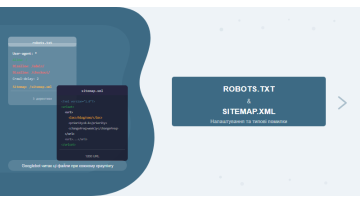
Robots.txt is a plain text file placed in the root directory of your website that instructs search engine bots which URLs they are allowed to crawl and which they should skip. Before crawling any page, Googlebot fetches yourdomain.com/robots.txt and reads the rules. This convention is called the Robots Exclusion Protocol and is respected by all major search engines.
Two concepts that are frequently confused:
- Crawling — whether a bot can visit a URL. Robots.txt controls this.
- Indexing — whether a page appears in search results. Controlled by the
noindexmeta tag orX-Robots-TagHTTP header.
Robots.txt blocks crawling, but it does not guarantee removal from the index. If external links point to a blocked page, Google may still index it — just without seeing the content.
The file lives at: https://yourdomain.com/robots.txt. It must be in the root of the domain, not a subdirectory. Subdomains have their own separate robots.txt files.
Robots.txt directives: full reference
The file is made up of blocks — each block starts with a User-agent directive and contains one or more rules. Here is the complete list of directives:
| Directive | What it does | Example |
|---|---|---|
User-agent | Specifies which bot the rules apply to. * means all bots. | User-agent: Googlebot |
Disallow | Blocks crawling of a URL or directory | Disallow: /admin/ |
Allow | Permits crawling of a specific URL inside a blocked directory | Allow: /admin/public/ |
Sitemap | Specifies the absolute URL of the sitemap.xml file | Sitemap: https://site.com/sitemap.xml |
Crawl-delay | Delay between bot requests (ignored by Googlebot) | Crawl-delay: 10 |
Example of a typical robots.txt for an e-commerce store:
User-agent: *
Disallow: /admin/
Disallow: /cart/
Disallow: /checkout/
Disallow: /thank-you/
Disallow: /account/
Disallow: /search/
Allow: /

User-agent: Googlebot-Image
Disallow: /private-images/

Sitemap: https://yourdomain.com/sitemap.xml
Rule priority: when Disallow and Allow conflict, the more specific rule wins. If both rules have equal length, Allow takes priority. This is Googlebot's behavior — other bots may interpret rules differently.
Syntax details that frequently cause confusion:
Disallow: /page— blocks/page,/page/,/page-about(anything starting with/page)Disallow: /page/— blocks only the/page/directory and everything inside itDisallow:(empty) — allows everythingDisallow: /— blocks the entire site- The
*wildcard in a path matches any sequence of characters:Disallow: /page/*?sort= - The
$character marks the end of a URL:Disallow: /*.pdf$— only .pdf files
What is sitemap.xml and its types
Sitemap.xml is an XML file that lists the URLs on your site along with metadata for search engines: the date of last modification, update frequency, and priority. Its main purpose is to help bots discover all important pages — especially those with no internal links pointing to them.
Structure of a basic sitemap.xml:
<?xml version="1.0" encoding="UTF-8"?>
<urlset xmlns="http://www.sitemaps.org/schemas/sitemap/0.9">
  <url>
    <loc>https://yourdomain.com/page/</loc>
    <lastmod>2026-05-01</lastmod>
    <changefreq>monthly</changefreq>
    <priority>0.8</priority>
  </url>
</urlset>
Sitemap types and when to use each:
| Type | Purpose | When to use |
|---|---|---|
| Standard (urlset) | List of website page URLs | Always |
| Sitemap Index | Index file pointing to multiple sitemaps | Site with >50,000 URLs or multiple content types |
| Image Sitemap | Image URLs with alt text and captions | E-commerce stores, photography portfolios |
| Video Sitemap | Video metadata (duration, thumbnail) | Sites hosting their own video content |
| News Sitemap | Articles published within the last 2 days | News publishers (Google News) |
| Hreflang Sitemap | Language versions of pages | Multilingual websites |
Example Sitemap Index for a large site:
<?xml version="1.0" encoding="UTF-8"?>
<sitemapindex xmlns="http://www.sitemaps.org/schemas/sitemap/0.9">
  <sitemap>
    <loc>https://yourdomain.com/sitemap-pages.xml</loc>
    <lastmod>2026-05-01</lastmod>
  </sitemap>
  <sitemap>
    <loc>https://yourdomain.com/sitemap-products.xml</loc>
    <lastmod>2026-05-01</lastmod>
  </sitemap>
</sitemapindex>Common robots.txt mistakes
Based on our technical SEO audit practice, robots.txt errors appear in roughly one out of every three client projects. Most are critical: the site is either invisible to Google or wasting crawl budget on admin pages and filtered URLs.
All critical checks are listed in our step-by-step technical SEO audit guide.
Real case: a furniture e-commerce client came to us after a platform migration — organic traffic had dropped 80% in one month. We found that the developer had left Disallow: / under User-agent: * in the live site's robots.txt — a leftover from staging. The result was three weeks of complete crawl blockage by Google.
| Mistake | Example | Consequence | Fix |
|---|---|---|---|
| Entire site blocked | Disallow: / | Googlebot does not crawl any page | Change to Allow: / or remove the line |
| CSS and JS blocked | Disallow: /assets/ | Google cannot render pages, sees raw HTML | Remove the restriction — CSS/JS must be open |
| Key sections blocked | Disallow: /blog/ | Entire blog drops from the index | Open the section or specify exact subdirectories |
| Allow/Disallow conflict | Disallow: /cat/ + Allow: /cat/ | Unpredictable bot behavior | Remove the duplicate, keep the more specific rule |
| No Sitemap directive | (no Sitemap: line) | Bots do not locate sitemap automatically | Add Sitemap: https://site.com/sitemap.xml |
| Duplicate User-agent blocks | Two User-agent: * blocks | Unpredictable processing, second block may be ignored | Merge into a single block |
| Parameter URLs not blocked | Not blocking /?sort=, /?page= | Bots crawl thousands of duplicate pages | Disallow: /*?sort=, Disallow: /*?page= |
One specific mistake common on WordPress and OpenCart sites: blocking /wp-admin/ without preserving access to admin-ajax.php, which breaks dynamic front-end functionality:
# WRONG:
Disallow: /wp-admin/

# CORRECT:
Disallow: /wp-admin/
Allow: /wp-admin/admin-ajax.php
How to set up sitemap.xml
There are two approaches: automatic generation via a CMS plugin and manual creation. The plugin approach works for most sites; manual setup is for custom structures or large sites with complex logic.
Automatic generation (CMS plugins):
- WordPress: Yoast SEO or Rank Math → Sitemap section → enable and select content types
- OpenCart: Google Sitemap extension (free in the marketplace) or an OCmod SEO module
- PrestaShop: Google Sitemap XML module → configure automatic updates via cron
- Bitrix: built-in Site Map module → SEO → Sitemap → Generate
- Custom site: a PHP or Python script that queries the database and builds the XML file
When manual setup is necessary:
- You need to include only specific categories or pages, not the entire site
- You need image or video sitemaps — most plugins generate these incompletely
- You need accurate
lastmoddates from the database, not the current date
What to include and exclude:
- Include: all indexed commercial pages, category pages, blog articles, landing pages
- Exclude: pages with
noindex, duplicate pages, pagination pages (in most cases), service URLs (admin, cart, thank-you), URLs blocked in robots.txt
Quick validity test: open the sitemap URL in a browser. Chrome should display formatted XML. If you see a parsing error or a blank screen, there is a syntax error in the file. Check encoding (UTF-8 without BOM) and special character escaping (& → &, < → <).
How robots.txt and sitemap work together
The two files work as a pair: robots.txt defines what Google can crawl; sitemap.xml tells Google where the priority pages are. A correct configuration requires three levels of consistency between them.
Where to reference your sitemap:
- In robots.txt — add
Sitemap: https://yourdomain.com/sitemap.xmlat the end. Google reads this automatically every time it fetches robots.txt - In Google Search Console — Sitemaps → Submit → enter the sitemap URL. This gives direct feedback: you see the status, the number of URLs, and the last read date
- Direct URL — Google also finds sitemap.xml automatically if it is placed at the standard location (
/sitemap.xml)
Critical: the URLs in sitemap.xml must exactly match what is open in robots.txt. If a page is listed in the sitemap but blocked in robots.txt, Google will flag a conflict and may either skip the URL entirely or index it without reading the content (if external links exist).
Unlike Yandex, Google does not guarantee that every URL in your sitemap will be indexed. A sitemap is a recommendation, not a directive. Without a sitemap, bots discover pages only through links — and can miss isolated or deeply nested URLs entirely.
How to test robots.txt and sitemap
There are several reliable testing methods. At SEO-Factory we use them in order of increasing depth — from a quick manual review to automated discovery through a full technical SEO audit.
Testing robots.txt:
- Manually in the browser: open
yourdomain.com/robots.txt— check for critical Disallow rules and the Sitemap line - Google Search Console → Settings → robots.txt: shows how Google reads the file, with problem highlighting. The built-in URL tester lets you check whether Googlebot can access specific pages
- Official documentation: Google's robots.txt reference points to the GSC tester as the primary tool
- Screaming Frog: Configuration → Robots.txt — shows blocked pages and visualizes rule conflicts
Learn more about the tool's capabilities in our article on Google Search Console for SEO.
Testing sitemap.xml:
- Open the URL in the browser — Chrome renders XML in a formatted view; parse errors are immediately visible
- Google Search Console → Sitemaps: submit the URL and check "Discovered URLs" vs "Indexed" after 24–48 hours
- Ahrefs → Site Audit → Data Explorer → Sitemap: shows how many URLs are in the sitemap, how many are indexed, and whether there are any conflicts
Warning sign: if "Submitted URLs" in GSC significantly exceeds "Indexed URLs" (e.g. 5,000 submitted vs 800 indexed) — you likely have duplicate pages in the sitemap, pages with
noindex, or URLs blocked in robots.txt. Analyzing this gap is the first step in any indexing audit.
Practical checklist
After any significant site update — redesign, platform migration, new CMS — run through this checklist. According to Search Engine Land, most critical crawl issues surface immediately after technical changes.
Robots.txt — checks:
- File is accessible — opens at
/robots.txtwith HTTP 200 - No
Disallow: /for User-agent: * — the single most critical error to check - CSS and JS files are open — Google must be able to render pages
- Service URLs are blocked — /admin/, /cart/, /checkout/, /account/, /search/
- Parametric URLs are blocked —
?sort=,?color=,?page=(if they create duplicates) - Sitemap: line is present — with an absolute URL, not a relative path
- No duplicate User-agent blocks — one block per bot
- Tested in GSC Tester — verified 3–5 key URLs
Sitemap.xml — checks:
- File opens without errors — valid XML, UTF-8 encoding without BOM
- URLs are absolute — include protocol and domain, not relative paths
- No noindex pages — cross-check against meta tags
- No URLs blocked in robots.txt — no conflicts between the two files
- lastmod dates are accurate — reflect the actual update date, not today's date
- 50,000 URL limit not exceeded — use Sitemap Index if the count is higher
- Submitted in GSC — status shows "Success"
- Auto-update is configured — a cron job or CMS plugin refreshes the sitemap when new pages are published
In Practice
A Kyiv real estate agency came to us with a sharp traffic drop — 55% organic decline over three weeks. The site runs on WordPress with around 12,000 property listings under /listings/, filtered by district and property type.
An initial GSC review showed a mass shift of pages into "Discovered — currently not indexed" status, even though the sitemap was returning HTTP 200 without errors. Screaming Frog identified the cause immediately: the entire /listings/ section was returning "Blocked by robots.txt".
The culprit was a routine plugin update. All in One SEO, upgrading to version 4.x, silently rewrote the robots.txt file and inserted Disallow: /listings/ into the global User-agent block — apparently due to a conflict with custom rules stored in the plugin settings. Over 21 days approximately 11,400 listing pages dropped out of the index.
After restoring the correct robots.txt, force-resubmitting the sitemap through GSC, and validating coverage with Ahrefs Site Audit, indexing recovered steadily: 9,800 pages were back in the index within four weeks and traffic returned to 78% of the original level.
If you run a WordPress SEO plugin, manually check robots.txt after every plugin update. All in One SEO, Rank Math, and Yoast can all overwrite the file silently during major version upgrades. Three minutes in the GSC Tester can save three weeks of index recovery.
FAQ
Can robots.txt completely block a site from indexing?
Yes. The directive Disallow: / under User-agent: * prevents all bots from crawling every page. However, this does not remove pages from the index — use the noindex tag or the URL removal tool in Google Search Console for that.
How many sitemap files can a website have?
There is no limit — you can have dozens of sitemap files using a sitemap index. A single sitemap can contain a maximum of 50,000 URLs and must not exceed 50 MB when uncompressed.
Is Crawl-delay required in robots.txt?
No. Googlebot ignores Crawl-delay and sets its own crawl rate based on server response time. The directive matters for Yandex and some other bots.
What should I do if sitemap.xml returns a 404 error?
Verify the path is correct — the sitemap is typically at yourdomain.com/sitemap.xml. If a CMS plugin generates it, check that the plugin is active and directory permissions are correct. After fixing the issue, resubmit the sitemap URL in Google Search Console.
Need a technical audit of your robots.txt and sitemap?
We will review the file configuration, find conflicts, and provide clear recommendations — included in our free technical site audit.